
Can I use Memoryboard with multiple people?Updated 16 hours ago
Using Memoryboard with multiple people
We understand caregiving takes a village, so we've designed Memoryboard to allow an unlimited number of people to send messages and reminders to your loved one's board. We call this your Care Circle.
When somebody is setting up Memoryboard for the first time, they will enter the 5-digit code shown on Memoryboard into their mobile app. This is what links your Memoryboard to your mobile device. From there, they will see a screen where they can add members to their Care Circle by sending an email invite. You also have the option to add members to your Care Circle by going to the Settings screen in the Memoryboard app (after app setup is complete).
How to add people to your Care Circle
During Onboarding:
- After you've entered the 5-digit code from your Memoryboard and given your Memoryboard a name and location, you will come to a screen that allows you to add members to your Care Circle, the group of individuals that can send posts to your Memoryboard.
- Enter their email one by one and click 'Send email invite'; they will receive an email inviting them to sign up for Memoryboard, which will take them to a screen to create their account and download the app.
- Note: When you send them an email invite, they will be automatically associated with your Memoryboard once they create their account (no need for them to use the 5-digit code!).
- Enter each email for each person you want to join your Care Circle.
- Hit 'Invite member'.
- Each email you enter will show up under your 'Care Circle' list.
After Onboarding:
Once you are using the app, you can always add new members to your Care Circle by going to Settings, followed by Care Circle. From there, you can follow the process outlined above in the 'During Onboarding' section.
Care Circle statuses
Under the 'Care Circle' list, there are three different types of 'status' each member can have:
- Admin: Admins have the ability to add/remove Care Circle members or Memoryboards. Admins can also change other members' status between 'Admin' or 'Member'. When you add a new person to the Care Circle, they will join as a 'Member'.
- Member: Members are typically invited to the Care Circle. They have full ability to post messages, edit, and view what is on the Memoryboard. They are not able to add other members to the Care Circle or add or remove Memoryboards.
- Invited: You will see 'Invited' under a person's email address when the member has been sent an email invite, but they have yet to accept the invite and create their account.
💡When you first start using Memoryboard, it's best to start with a smaller Care Circle so the person with memory loss and family members can get used to sending and receiving messages on Memoryboard. As you become more familiar with Memoryboard, you can grow your Care Circle.
Other Tips
- You can add an unlimited number of people to your Care Circle.
- All members of the Care Circle can see (and edit) all posts and messages on all boards associated with that Care Circle.
- Admins can remove a person from the Care Circle by clicking the purple pencil icon next to their name on the Care Circle screen in your app's Settings.
- Under your Care Circle, you can see who has been invited (indicated by gray "Invited" under their email).
- There are roles within the Care Circle. For the person setting up the Memoryboard, they will be an 'Admin', giving them the ability to add/remove other members and add/remove additional Memoryboards. When they invite others to join the Care Circle, invited members will join as 'Members' (without the ability to edit other members or boards). Admins have the ability to update roles of other members from Members to Admins.
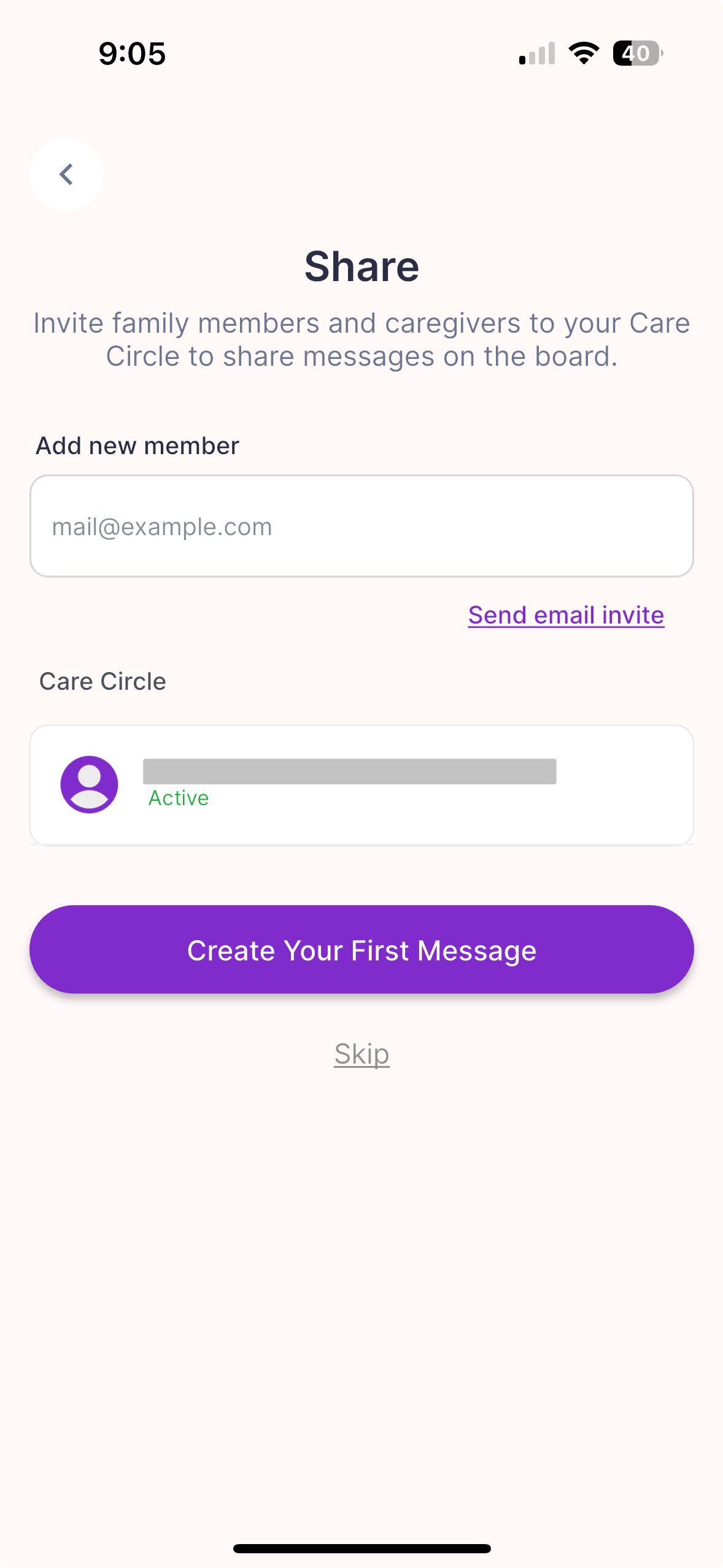 Adding to your Care Circle during Onboarding | .jpg) Adding to your Care Circle from Settings screen |