
How are posts displayed on the Memoryboard?Updated 3 days ago
How posts are displayed on Memoryboard
Family members and caregivers can send text messages or photos to the Memoryboard from the Memoryboard mobile app. Text will be enlarged to fill the entire width of the Memoryboard for better readability. Today, it is not possible to manually adjust the font size.
Photos will be displayed differently, depending on whether they're taken in landscape or portrait mode, to be as large as possible on the Memoryboard. Landscape photos will fill the entire screen. Memoryboard will display the entire portrait photo centered on the screen, which means there will be 'white space' on the left and right sides of a portrait photo.
If there is only one message or photo scheduled, it will remain on the Memoryboard all day. If multiple messages and/or photos are displayed simultaneously, they will appear in a carousel (switching from one to the other and back again), with each post displaying for 10 seconds up to 2 minutes. This ensures there is only one message or photo being displayed at any time, keeping things simple for your loved one.
To control how long a post remains on the screen before switching to the next post: in the app, click on Settings, Boards, and the purple pencil icon to be taken to the board settings screen. Here, you can adjust the 'time between posts' field.
Your loved one can swipe the screen to view posts, although this is not necessary, as they will rotate automatically.
All messages disappear at the end of the day (unless scheduled to repeat in the Memoryboard app), so be sure to send a new message daily!
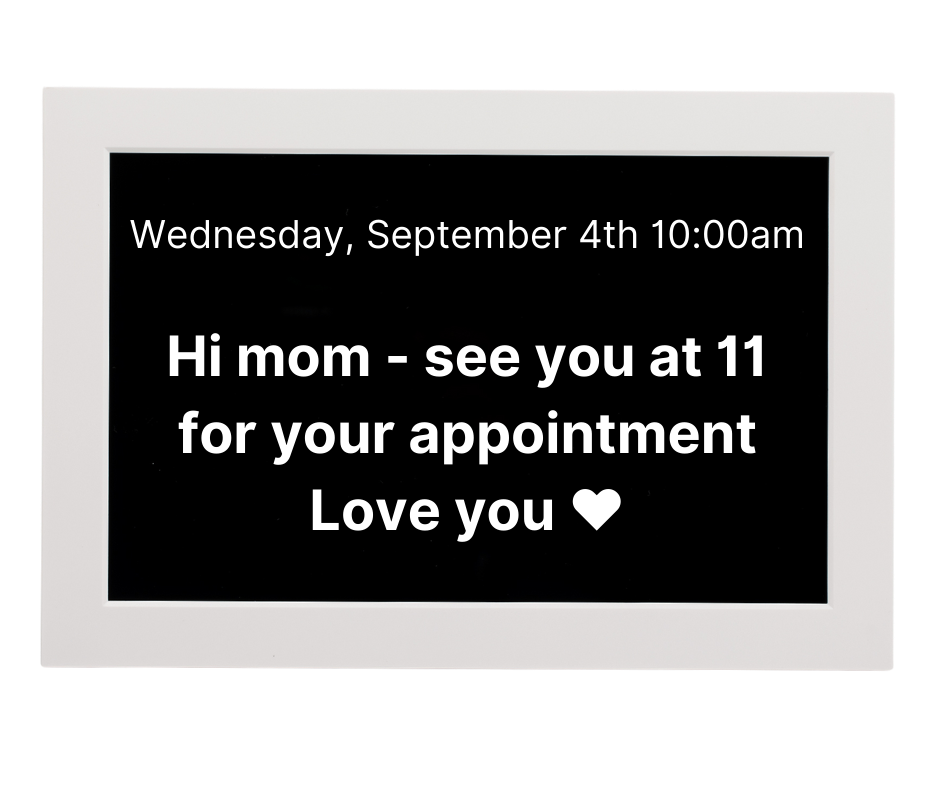 Example message on 10-inch Memoryboard