
How do I adjust settings on my Memoryboard?Updated 2 months ago
Adjusting settings on your Memoryboard
There is a small menu on the Memoryboard that you can access by swiping down on the date/time at the top of the Memoryboard. From the menu, you can access a few settings and features:
- Settings: On your Settings page, you can adjust Sleep Mode (the start and end times the device will go dark in the evenings) or toggle it on or off. You can also change the time zone.
- The Settings screen also provides information about your Memoryboard:
- App version: The version of the Memoryboard software you are on (this is different than the app version of the Memoryboard app on your phone). This will update after you click "Check for updates" on the bottom left of the Settings screen (if there is an update available).
- Code to link: Your unique 5-digit code that you used to connect your Memoryboard and your app; you can share this with family members who want to join your Care Circle. This will match the 5-digit code in your app (by going to Settings, Boards, and clicking the purple pencil icon).
- Memoryboard ID: Your unique Memoryboard identifier. You will not need to use this unless requested by our Customer Support team.
- MAC Address: Unique MAC address, which some assisted living facilities need to 'whitelist' devices on their WiFi network (although we've only seen this occur in a handful of cases).
- Check for updates: This button enables you to check for and install the latest versions of the Memoryboard software. When clicked, if an update is available, you will see a screen asking you to 'Install' the update.
- We will communicate with families when major releases are available and ask them to download. Unfortunately, we're unable to perform updates on the Memoryboard via the app today (you need to be at the Memoryboard to update the device).
- The Settings screen also provides information about your Memoryboard:
- Wi-Fi: Check or change the Wi-Fi network you are connected to.
- On this screen, you can swipe down on the list of available networks to refresh the list of networks that appear.
- Once you click on a network, if you're currently connected, it will ask you if you "really want to disconnect"
- You will need to access this screen if you initially set up your Memoryboard at your home before taking it to your loved one's, as you will need to reconnect your Memoryboard to your loved one's WiFi from here.
- Brightness: Adjust the brightness of the Memoryboard.
- Volume: Adjust the sound of the 'ring' notification on the Memoryboard.
You can turn the Memoryboard on and off using the power button located on the back of the device, or unplug the Memoryboard to perform a 'hard reset'. We recommend you do a hard reset when troubleshooting issues related to the WiFi connection or messages not appearing on the Memoryboard.
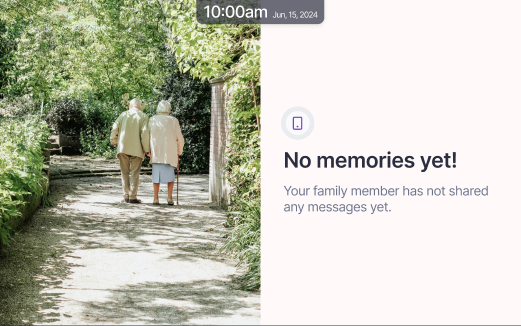 Drag down on the date and time at the top to access the Memoryboard's menu