
How do I navigate the 'Activity' screen in the app?Updated a month ago
Navigating the 'Activity' screen in the app
The Activity screen in the Memoryboard app is your home base for managing messages and photos on your Memoryboard. The Activity screen is made up of a few sections:
- Memoryboard name, location, and status: At the top of the Activity screen, you will see:
- The name and location of your Memoryboard; in the case you have multiple Memoryboards, you can switch between them using the left and right arrows (these will be gray if you only have one Memoryboard)
- You can click the icon on the top right to be taken to your profile settings, where you can update your account information
- Memoryboard preview: The main section of the Activity screen shows you the posts currently displayed on your Memoryboard. You can swipe each post to see all the active (visible) posts currently on your Memoryboard. While you need to swipe through each post in your app, posts on the Memoryboard will rotate automatically, switching between all the active posts scheduled at that time. A few other things to know about the preview area:
- The date and time will reflect the date and time where the Memoryboard is located (regardless of what time zone you are in)
- Status indicates whether the Memoryboard is 'Online' (green) or 'Offline' (red). When Memoryboard status shows 'Offline', it indicates that Memoryboard is not checking the server for new messages, such as when it is disconnected from WiFi or unplugged. As a result, your Memoryboard will not receive messages when it is Offline.
- If there are no messages on the Memoryboard, you'll see a message in the preview area that says "No posts currently displayed on this board."
- All board posts: The bottom of the Activity screen displays all board posts currently shown on the Memoryboard, including expired posts. You can click on a post to see additional information, make it visible or not, edit it, or delete it.
- When you have posts that are 'expired,' you will see an orange banner indicating the number of expired posts. From here, you can easily delete expired posts that you no longer want to save in your app.
- On top of each post will be either a red or green eye icon. This icon indicates whether the post is currently visible on the Memoryboard. If not, it is either an expired post or an upcoming post that is not yet active.
Actions you can take
When you click on a post under the "All board posts" section, you can find more information about the post:
- Showing/Not Showing: Indicates whether the post is currently displayed on the Memoryboard.
- Scheduling rules: Gives you the dates, times of day, and whether the post is scheduled to repeat for certain days.
- Disable post: Toggle the post on or off to make it visible or not visible on your Memoryboard, regardless of scheduling rules. This overrides any other scheduling settings for that post (i.e., if the post was scheduled to appear at that time).
- Delete post: Delete the post and remove it from the Memoryboard and your app.
- Edit post: Modify the post by changing the image, changing the text, switching which board to display on, or adjusting the schedule of the message. This is particularly helpful if you want to make expired posts active again.
- You can also edit posts from other members of your Care Circle.
Other things to know
- You can access your profile settings by clicking on the profile icon in the upper right of the screen.
- Swipe up on the screen to see all photos that are appearing or scheduled to appear on your Memoryboard (to see all messages under the "All board posts" section)
- Posts expire (disappear) at the end of each day. When you open your app, you will see an orange banner on the Activity screen (seen in the screenshot below) letting you know you have expired posts. You can click the orange banner to delete expired posts from your app.
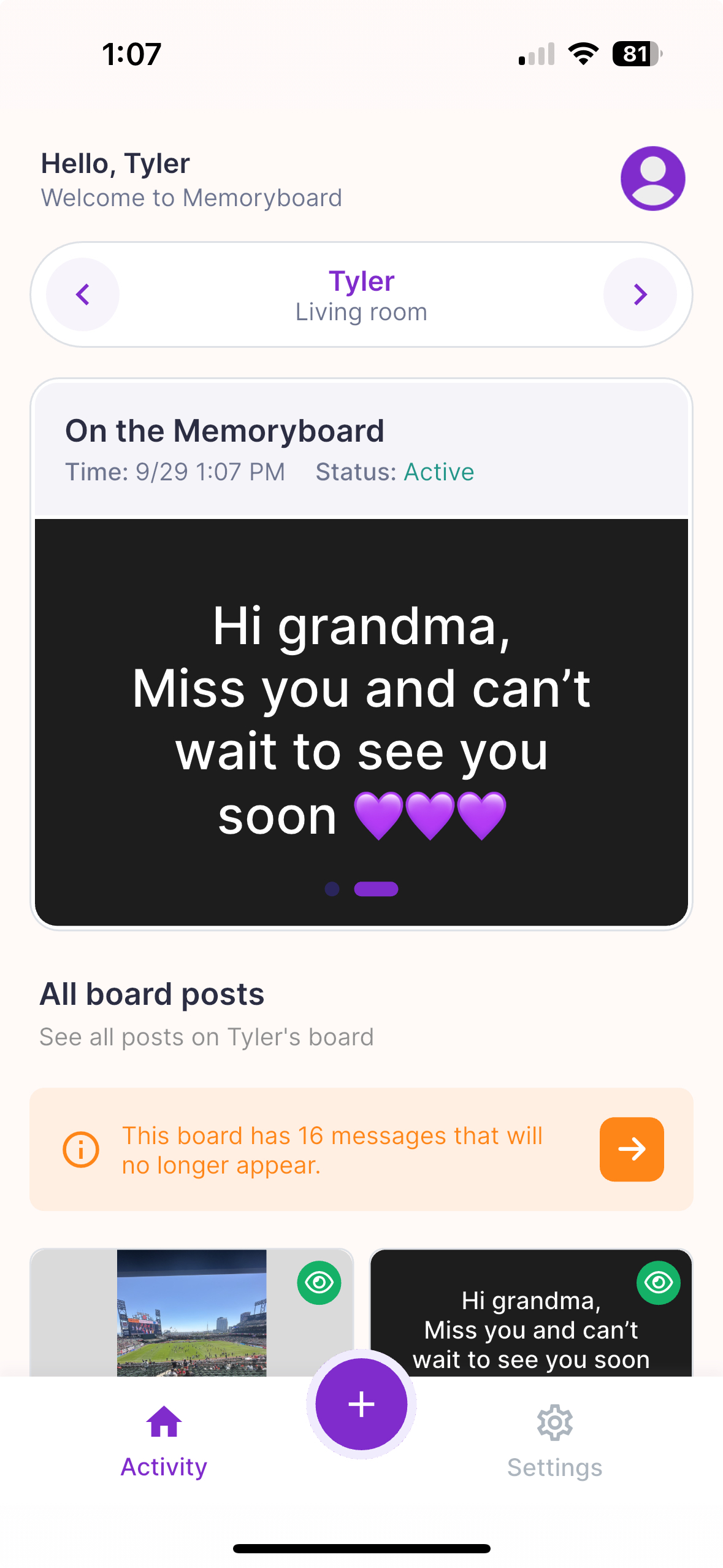 Activity screen in the Memoryboard app