
How do I tag photos?Updated 3 months ago
Tagging photos
The Memoryboard app allows you to tag photos to provide additional context and a brief description of the image—who is in it, where it was taken, etc.
To tag photos:
- Select 'Image' on the Create a Post screen
- Pick the Image you want to post (either from your gallery or by taking a photo with your camera)
- Once the photo is selected, hit the 'Tag' button on the top right of the screen
- Pick where on the photo you want to place the tag
- A text field will appear to enter what you want the tag to say
- Hit "Save the tag" to save and place the tag
- Hit 'Next' to continue
Other Tips and Reminders
- Tags are limited to 30 characters (~5-6 words) to ensure they fit on the photo without taking up too much space
- You can remove a tag by clicking on the 'X' on the right of the tag
Tagging Images in the Memoryboard App
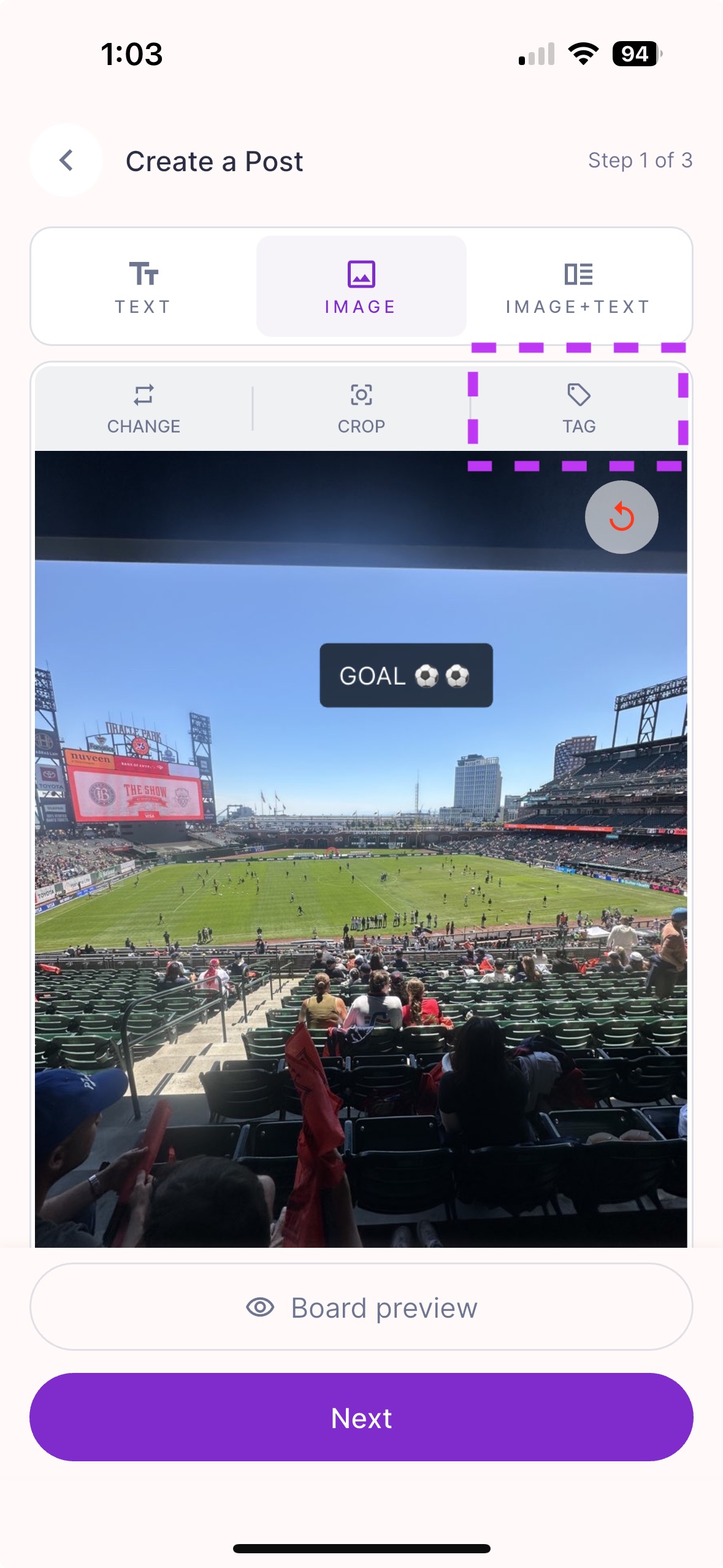 Click 'Tag' after selecting your image