
How does scheduling a message work?Updated 2 months ago
Scheduling a message
In this article, we will walk you through everything you need to know about scheduling a post on your Memoryboard.
💡 IMPORTANT REMINDERS WHEN SCHEDULING
- The default is for messages to expire (i.e., disappear) at the end of the day, unless scheduled to repeat.
- If you don't want to schedule a post and prefer to send it immediately, you can skip the scheduling steps and click the purple button labeled "Post to Board" at the bottom of the Scheduling screen (Step 3 of 3 when sending a message).
- When scheduling, select the time that matches the time the Memoryboard is in, regardless of your time zone. For example, scheduling a message to start at 9:00 a.m. will appear at 9:00 a.m. on the Memoryboard, regardless of your time zone.
- If you want a post to repeat on specific days or multiple days of the week, you must select each day of the week on which you want the post to be visible.
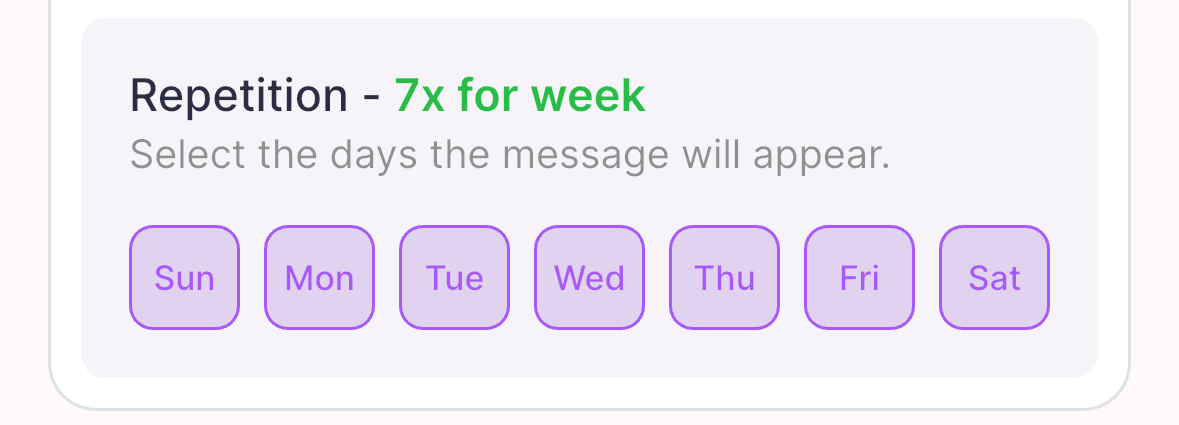 You must select the days of the week you want your message to repeat
Scheduling is set up to allow flexibility in how you want to schedule a post, including the ability to adjust several variables.
- Starts: The day you want the message to start
- Ends: If you want the message to end (i.e., expire) on a specific day or continue with no end date
- Duration: Select if you want the message to appear all day or during a set interval of time by selecting the start time and end time
- Repetition: Select which days of the week you want the message to be displayed
We'll go into each one of these below.
Starts
Select when the message will start. Start allows you to select a future day when you want the message to appear on your Memoryboard. This is great for those who want to plan out their messages for the next few days or special events (e.g., a birthday or a family event in the future).
Under Starts, you can access a calendar to select the specific day you want the message to start.
Ends
Select when the message will end. The default is "no end date," meaning the message will continue to repeat based on the selected repetition (i.e., the days of the week on which you want the message to repeat). You can also select a date for the message to end by clicking "Select Date" and choosing the end day from the calendar.
Duration
Select the period the message will appear. The default is "all day," meaning the post will remain on your Memoryboard until the end of the day. The other option is to "select time," which allows you to select the start and end times the message will appear during the day. Select time pulls up a timer where you can select and adjust AM or PM for the start and end of the message.
Repetition
Select the days the message will appear. If you want a message to be visible on your Memoryboard beyond today, select the days you want the message to repeat. Select the days of the week on which you want the message to appear.
Examples
| Send a loving message that appears for the duration of the day | Starts = Today Ends = No end date Duration = All day Repetition = Leave blank Your loved one will receive a message immediately after you click "Post to Board" that will remain on the board for the duration of the day and disappear at the end of the day. |
| It's Saturday, and you send a message that remains on all weekend (Saturday, Sunday) | Starts = Today Ends = Choose tomorrow's date Duration = All day Repetition = Select Saturday and Sunday Your loved one will receive a message immediately, and it will remain on the Memoryboard through Sunday and disappear at the end of the day on Sunday. |
| Remind your loved one about a weekly lunch outing on Wednesdays | Starts = Today Ends = No end date Duration = Pick your start time, such as 9 AM, and pick your end time, such as 1 PM, after lunch is over Repetition = Wednesday Your loved one will receive a message every Wednesday morning at 9 AM letting them know there is a lunch outing. The message will no longer be visible starting at 1 PM. |
| Remind your loved one about an afternoon appointment | Starts = Today Ends = No end date (message will expire on its own at the end of the day) Duration = Pick your start time, maybe the current time, and end time, as some time after the appointment is over Repetition = Leave blank Your loved one will receive a message that they have an appointment in the afternoon. The message will either disappear at the end time set or at the end of the day if no end time is set. |
| Remind your loved one to drink a glass of water every morning | Starts = Today Ends = No end date Duration = Pick your start time, such as the current time, and pick an end time Repetition = Select all days of the week Your message will appear every day of every week between the start time and end time you indicated. |
| Remind your loved one about a birthday tomorrow | Starts = Tomorrow (select the specific day) Ends = No end date (message will expire on its own at the end of the day) Duration = All day (default option) Repetition = Leave blank Your message will appear tomorrow for the duration of the day. |
| Schedule a message to appear for the rest of the day and through part of the day tomorrow | In this case, you would need to schedule as two separate messages. One for today, which lasts from now until the end of the day. One for tomorrow that goes until the desired end time. |
Scheduling Screen (Top).png) First, select your start and end dates | Scheduling Screen (Bottom).png) Next, select duration and repetition |